Managing Workspaces, Profile & Subscriptions in Seen
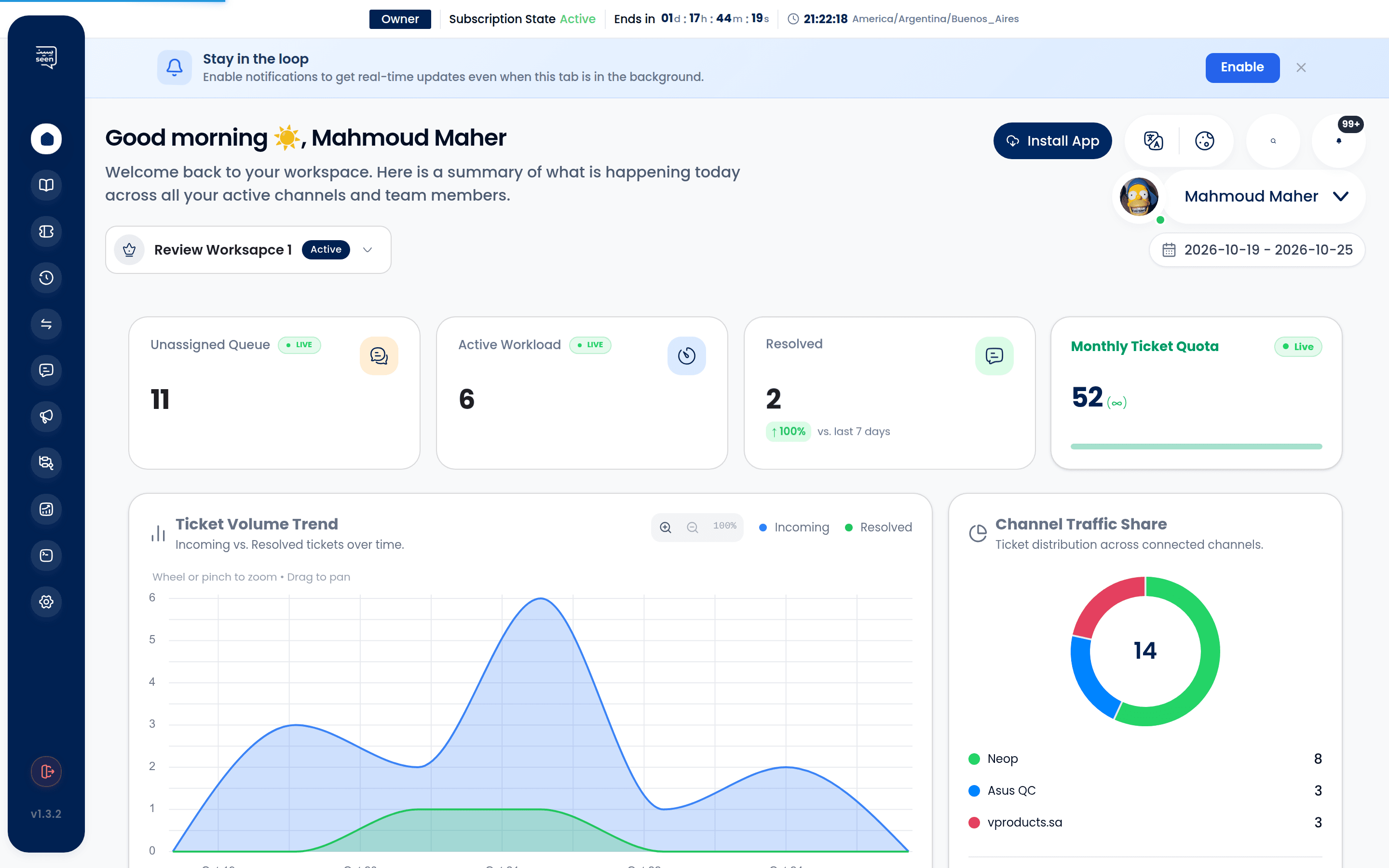
Seen is engineered on an enterprise-grade Multi-Workspace Architecture designed specifically for organizations operating multiple subsidiaries, franchise branches, specialized brand portfolios, or digital agencies managing disparate client accounts. Workspaces provide complete isolation of communication channels, customer directories, team rosters, and automated workflows while allowing users to transition effortlessly between organizations under a single authenticated identity.
1. Core Architecture of Workspaces
A Workspace in Seen is a dedicated operational container with its own:
- Dedicated messaging channels (specific WhatsApp Business Cloud numbers, Instagram accounts, Telegram bots).
- Isolated contact lists, customer tags, and custom attributes.
- Dedicated team memberships governed by custom granular permissions.
- Independent WhatsApp templates, chatbot flows, and SLA operating hours.
- Distinct subscription plans, quotas, invoice history, and analytical telemetry.
Note: A single user email address can serve as the sovereign Workspace Owner in one workspace, an Administrator in a regional branch, and a standard Agent in a client workspace—with instant cross-organization switching.
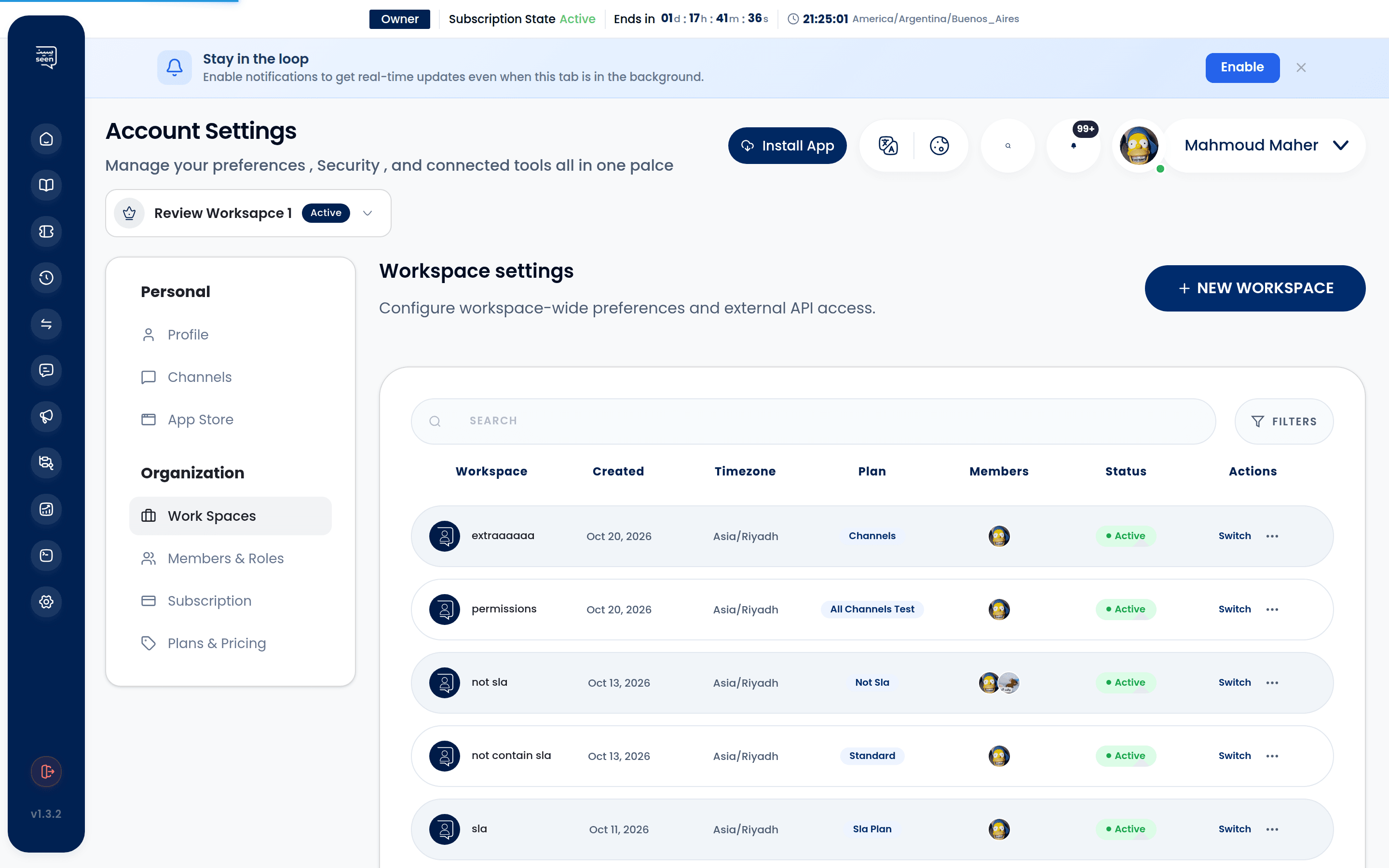
2. Configuring Workspace Identity (Workspace Settings)
To access and configure your current workspace's profile, navigate in the sidebar to Settings > Workspace Profile:
Identity & Regional Configurations
- Workspace Name: The official commercial trade name or department descriptor (e.g., "Apex Logistics - Central Hub"). This label is featured in email invitations and system dispatch notices.
- Workspace Logo: Upload a high-resolution PNG, JPG, or SVG emblem. The logo renders prominently in the sidebar header for quick visual identification.
- Operational Timezone: Crucial for operational accuracy; all SLA Countdown Clocks, Broadcast Campaign Schedules, and Chatbot Operating Windows evaluate their execution against this setting.
- Default Language: Establish Arabic or English as the workspace baseline default.
Navigation Path:
Sidebar Settings Icon (Gear) → Workspaces → Workspace Profile Tab
3. Seamless Multi-Workspace Switching
When your user profile holds credentials across multiple workspaces:
- Click the Workspace Name & Logo dropdown situated at the very top of the navigation sidebar.
- A flyout menu reveals every authorized workspace along with your designated role (Owner, Admin, or Agent).
- Select any workspace; the interface instantaneously transitions context, refreshing channels, active tickets, and data tables without requiring re-authentication.
- Click "Create New Workspace" to bootstrap a fresh organization container immediately.
Tip: Assign distinctive avatar colors or logo marks to staging and production workspaces to prevent inadvertent test broadcasts to real customers.
4. Personal Profile Settings (User Profile)
Team members can personalize their personal workspace identity via Settings > Profile Settings:
- Avatar: Upload a profile photo displayed across internal chat notes and the conversation audit timeline.
- Display Name: Your professional name displayed to teammates and presented to customers during live ticket exchanges.
- Phone Number & Email: Direct contact coordinates utilized for multi-factor authentication, security audits, and system notifications.
- Password Security: Rotate credentials and initiate security sessions.
- Language Preference: Independently override the workspace language to suit personal workflows (Arabic or English) without altering colleagues' interfaces.
5. Subscription Management, Plans & Billing (Subscriptions)
Manage your commercial relationship with Seen effortlessly through Settings > Subscriptions:
Subscription Tiers & Resource Upgrades
- Plans & Pricing Overview: Transparent side-by-side matrix comparing Starter, Growth, and Enterprise tiers.
- Plan Resource Allocations:
- Allocated Agent Seats (expandable on demand).
- Connected Channel Allowances (WhatsApp, Instagram, Telegram).
- Monthly Message Quota and Monthly Active Contacts (MAC).
- Advanced Chatbot Flow Builder and AI agent connectors.
Billing Methods & Tax Invoicing
- Supported Payment Gateways: Credit Cards (Visa, MasterCard), Mada, and Apple Pay with end-to-end tokenized security.
- Billing Cycles: Flexible Monthly or Annual billing (with preferential discounts on annual commitments).
- Tax Invoice Archive: Downloadable VAT-compliant PDF invoices for auditing, corporate finance, and accounting reconciliation.
| Feature / Resource | Starter Tier | Growth Tier | Enterprise Tier |
|---|---|---|---|
| Agent Seats | 3 Agents | 10 Agents | Unlimited Custom |
| Connected Channels | 1 Channel | 3 Channels | Multi-Channel Unlimited |
| Mass Broadcasts | Included Standard Quota | Scaled Multi-tier Quota | High-Volume Dedicated Quota |
| Flow Builder (Bots) | Basic Linear Bots | Multi-branch & Conditional | Advanced Webhook & Custom Logic |
| SLA Policies | Basic Single Policy | Business Hours & Priorities | Multi-tier Escalation Rules |
Warning: In the event of a renewal lapse, the workspace enters a time-limited grace period before mass campaigns and automation nodes are paused. Historic customer chat logs remain safeguarded and accessible throughout.
6. Real-Time Notification Center
Located in the global header bar, the Notification Center keeps supervisors and frontline staff alerted to high-priority events:
- Unassigned Ticket Arrivals: Audio-visual pings when new inbound customer conversations land in the unassigned queue.
- SLA Breach Warnings: High-urgency notifications flagging tickets approaching First Response or Resolution limits.
- Transfer Approval Requests: Direct prompts delivered to admins when agents submit ticket handoffs via the Transfer Requests Workflow.
- Quota Threshold Alerts: Operational notifications warning administrators when message allowances approach 85% and 95% capacity.
Step-by-Step: Onboarding a Fresh Workspace from Scratch
- Click the workspace menu dropdown and select "Create Workspace".
- Supply your organization's legal or trading name, upload your corporate logo, and set the appropriate regional timezone.
- Navigate to Channels to connect your verified WhatsApp Business Cloud API number via Meta Embedded Signup.
- Proceed to Users, Roles & Permissions to invite team members and group them into functional units (e.g. Sales, Tier 2 Support).
- Establish your SLA Policies & Business Hours to enforce response standards across all incoming tickets.
Frequently Asked Questions
Can an agent be logged into multiple workspaces simultaneously?
Yes. An agent can belong to multiple workspaces with varying permission levels. Using the quick switcher menu, they can flip between organizations within seconds on the same browser tab without conflicting session cookies.
What happens to archived ticket records if a workspace is deleted?
Workspace deletion is an irreversible action executable only by the sovereign Workspace Owner. Upon confirmation, all associated contact profiles, conversation messages, media assets, and analytics are permanently purged. Always export your contacts and performance logs prior to deletion.
How are monthly message quotas shared across different workspaces?
Each workspace operates under its own distinct subscription quota and billing ledger. Resource usage in Workspace A does not consume message allowances in Workspace B unless bundled under an overarching Enterprise Consolidated Agreement.