Connecting Channels to Seen (Omnichannel Integration)
Seen's strength lies in its Omnichannel Architecture, which centralizes fragmented customer touchpoints into a unified, enterprise-grade cloud workspace. Rather than forcing agents to juggle disparate mobile handsets, social media tabs, and third-party tools, Seen unifies verified WhatsApp Business Cloud API numbers, Instagram Direct Messages, Facebook Pages, and Telegram Bots into a synchronized conversational stream complete with unified ticketing, automation, and SLA auditing.
1. Supported Omnichannel Platforms & Protocols
Seen provides native, direct cloud integrations across primary messaging networks:
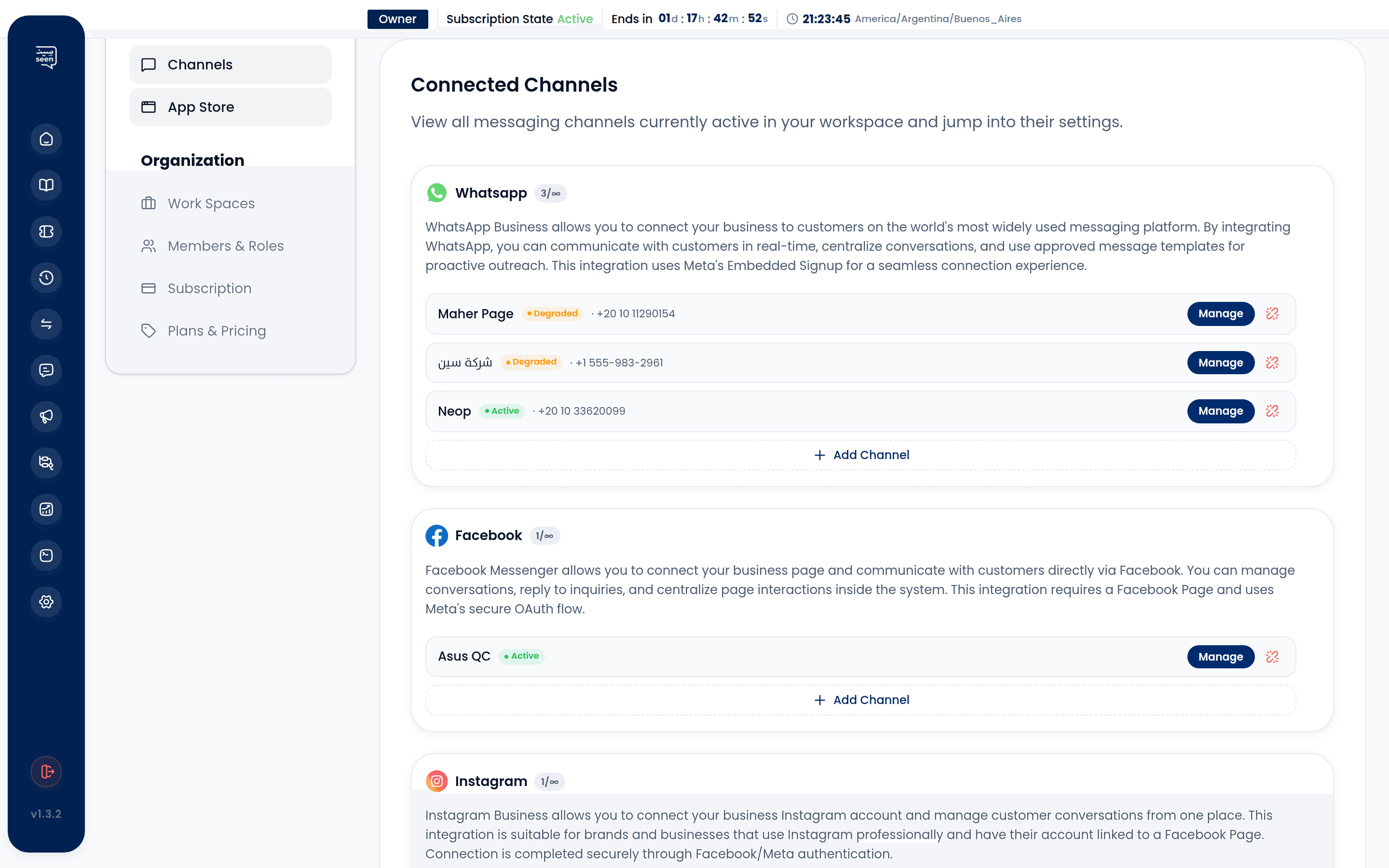
A) WhatsApp Business Cloud API
- The flagship channel for commercial sales and enterprise customer service.
- Onboarded natively via Meta Embedded Signup, eliminating third-party broker markups and hosting latency.
- Full multimedia support: Images, Audio notes, Video, PDF attachments, interactive Quick Replies, and location pins.
- Incorporates WhatsApp Coexistence to preserve legacy chat history seamlessly.
B) Instagram Direct Messages
- Links professional Business or Creator accounts tied to your verified Facebook Page.
- Ingests direct private messages, story replies, and story mention alerts.
C) Facebook Messenger
- Integrates your official Facebook commercial page to route public inquiries directly into ticket queues.
D) Telegram Bot API
- High-speed direct webhook integration configured via an API Token generated by
@BotFather. - Exceptional choice for technical support, alert dispatches, and international developer communities.
2. Onboarding WhatsApp via Meta Embedded Signup
Connecting official WhatsApp Cloud lines in Seen requires zero technical infrastructure and finishes in under five minutes:
WhatsApp Onboarding Flow:
Settings ──► Channels ──► Connect WhatsApp ──► Meta Popup ──► Select Business Manager ──► Verify Phone via SMS ──► Live!
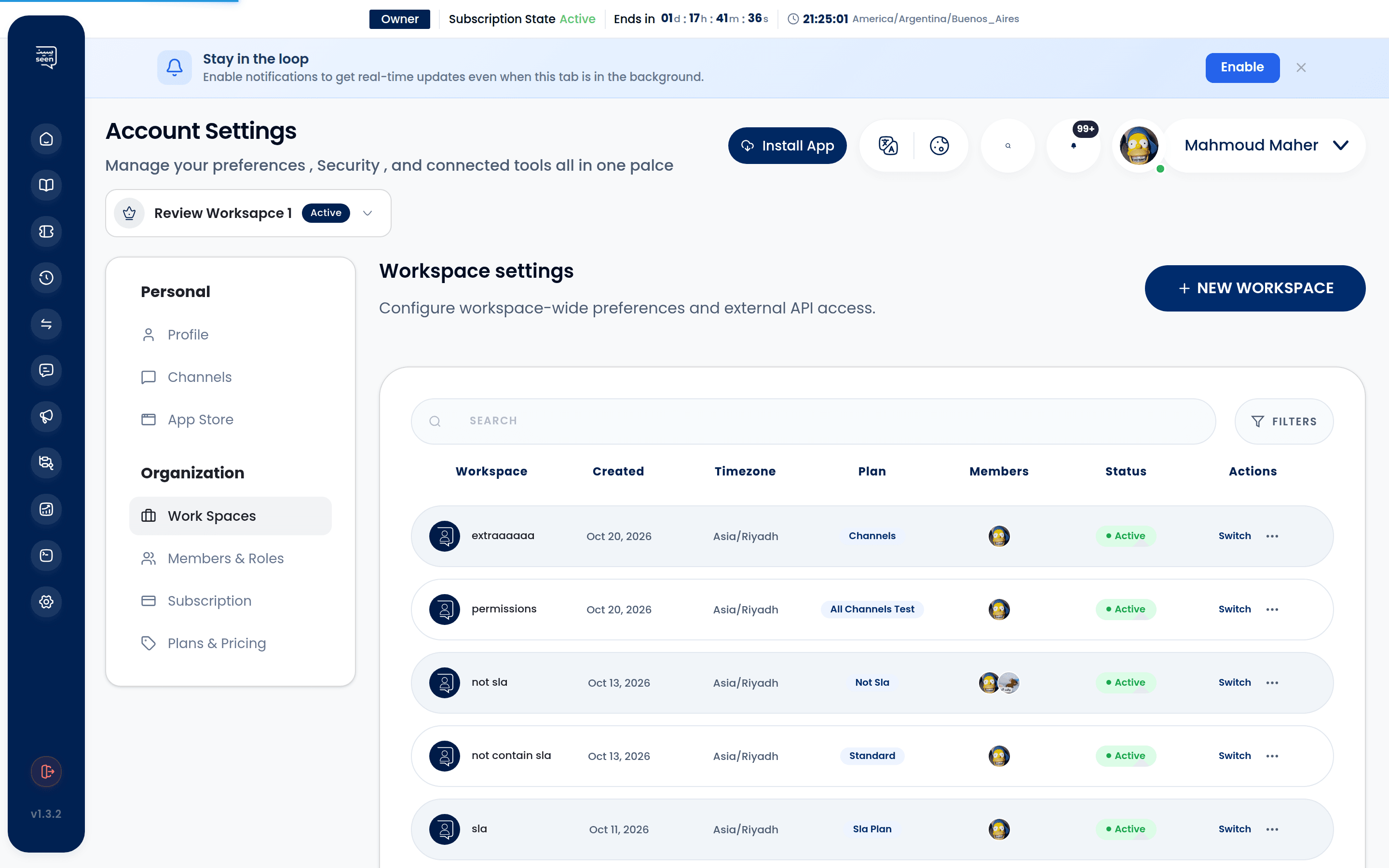
- In the Seen sidebar, navigate to Settings > Channels.
- Click "Connect Channel" and select WhatsApp Business.
- A secure, official Meta Facebook Login modal launches:
- Log into the Facebook account holding Administrator permissions for your Meta Business Manager.
- Select your existing Business Account or register a new commercial entity.
- Configure your WhatsApp Business Profile, including your official customer-facing Display Name.
- Phone Verification:
- Provide the dedicated phone line to be registered (must be capable of receiving international SMS or voice verification codes).
- Input the 6-digit verification code.
- Upon confirmation, the modal dismisses automatically, and your channel registers in Seen with an active Active status.
Warning: The phone number must NOT be actively registered on personal WhatsApp or the WhatsApp Business mobile app at the time of connection. Delete the account from the mobile app first to allow cloud migration.
3. Connecting Instagram Direct Messages
- Confirm your Instagram account is configured as a Professional / Business Account.
- Confirm the account is linked to your official Facebook Business Page and that the "Allow Access to Messages" toggle is active within Instagram settings.
- In Seen, select Channels > Connect Channel > Instagram.
- Authenticate via Facebook OAuth, granting Seen permissions to access page conversations and direct messages.
- Select the target Instagram handle and click "Connect".
- Direct messages and story mentions will immediately route into the Omnichannel Inbox.
4. Connecting Telegram Bot
- Open Telegram and initiate a conversation with the official verified
@BotFather. - Dispatch
/newbotand follow prompts to establish the bot display name and unique username ending inbot. - BotFather issues a secret API Authentication Token.
- In Seen, navigate to Channels > Connect Channel > Telegram.
- Paste the secret token into the
Bot Tokenfield and click "Verify & Connect". - Seen configures webhooks automatically; the bot begins routing inquiries into tickets instantly.
5. Channel Health Monitoring & Token Lifecycle Management
Cloud messaging channels require periodic monitoring to safeguard webhook continuity:
Channel Operational States (`ChannelStatus`)
- Active (1): Healthy bidirectional connectivity; messages flowing without latency.
- Disconnected (2): Webhook interrupted or authentication revoked; requires re-login.
- Degraded (3): Intermittent API latency or temporary rate-limiting from provider servers.
Meta Token Expiration Triggers & Recovery
Meta access tokens may become invalidated if:
- An administrator updates their personal Facebook login password.
- Business Manager administrative permissions are revised.
- Long-lived session tokens reach their statutory security renewal threshold.
Resolution: Seen flags affected channels with an amber warning badge: "Access Token Expired". Click the "Re-authorize" button to execute a one-click OAuth refresh, restoring full synchronization without data loss.
6. Cross-Channel Capability Comparison
| Channel Feature | WhatsApp Cloud API | Instagram Direct | Facebook Messenger | Telegram Bot |
|---|---|---|---|---|
| API Architecture | Cloud API (Meta Hosted) | Graph API | Messenger Platform | Bot API (Webhooks) |
| Free-form Window | 24 Hours from last customer inbound | 24 Hours from customer inbound | 24 Hours from customer inbound | Unlimited (No window restriction) |
| Out-of-Window Messaging | Approved Templates | Not supported | Not supported | Fully supported anytime |
| Supported Attachments | Text, Images, Video, Audio, PDF, Pin | Text, Images, Audio notes | Text, Images, Video, Audio | Text, Images, Documents, Stickers |
| Interactive Buttons | Quick Reply, CTA URLs, Phone | Quick Reply chips | Quick Reply chips | Inline keyboards & Reply buttons |
Frequently Asked Questions
Can I connect multiple WhatsApp phone numbers to a single Seen workspace?
Yes. Multi-channel architecture allows you to link separate numbers (e.g. Sales Line vs Support Line) and route their conversations automatically to distinct specialized teams.
What happens to incoming messages if our office experiences an internet outage?
Because Seen operates 100% on high-availability cloud infrastructure, customer messages are safely ingested, processed, and stored on our servers. The moment your team reconnects from any computer or mobile browser, all queues appear updated in real time.
Does Telegram charge per-message fees for bot communications?
No. Telegram's Bot API is completely free of charge, with no conversation window restrictions or per-message utility fees.