Meta-Approved WhatsApp Message Templates in Seen
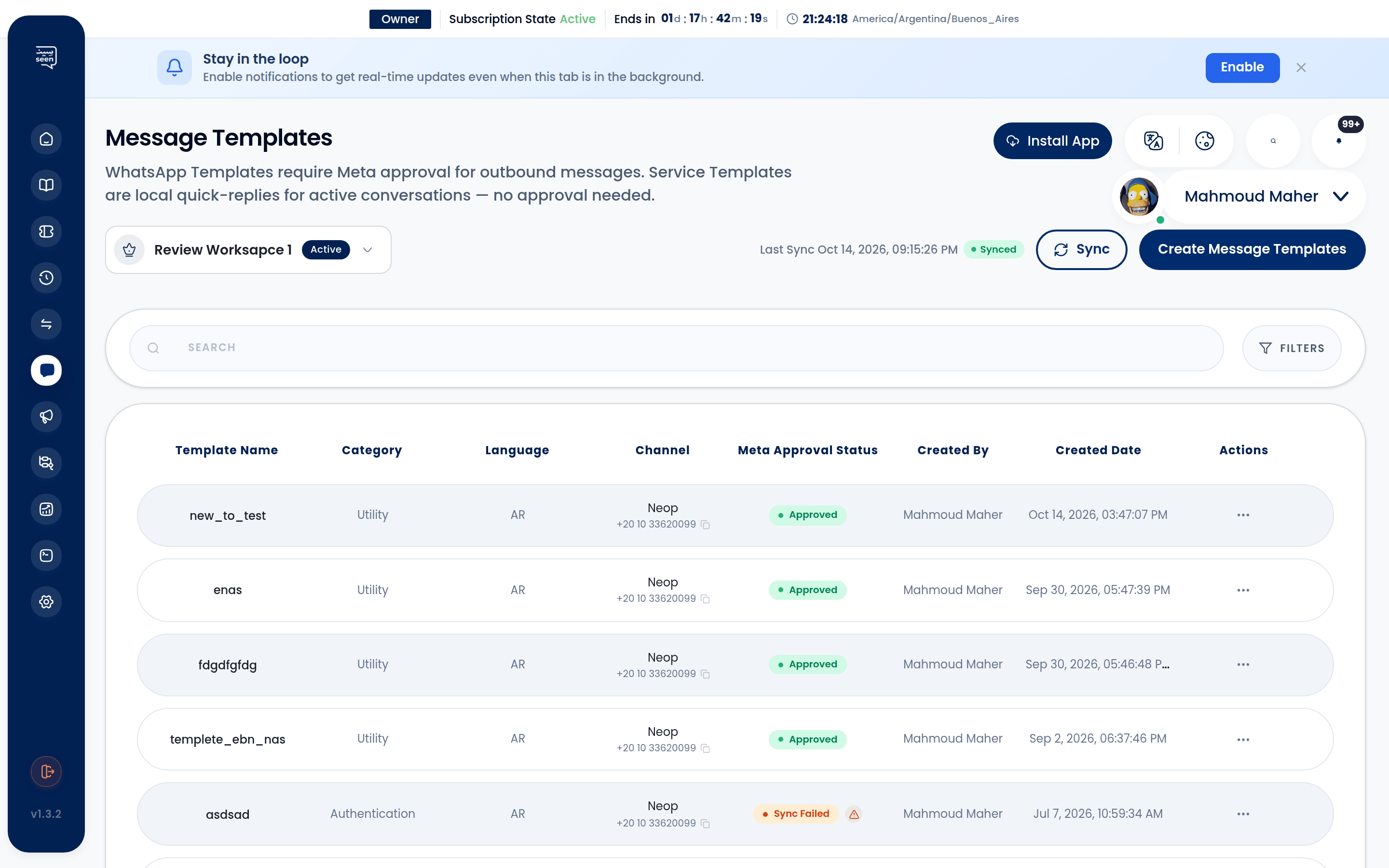
WhatsApp Message Templates serve as the mandatory, auditable mechanism for all outbound, business-initiated communication across the official WhatsApp Business Cloud API. Governed strictly by Meta policies, pre-approved templates are legally required whenever your business launches outbound Mass Broadcasts or initiates contact with a customer whose 24-hour service window has elapsed in the Omnichannel Inbox.
1. Official Meta Template Categories
Meta categorizes all message templates into distinct commercial categories, which govern approved content types and per-message delivery costs:
A) Marketing Templates (Category 3)
- Promotions, time-limited discount offers, product launch announcements, seasonal gift guides, and abandoned cart recovery reminders.
- Highly flexible: supports rich multimedia headers (Images, Videos, PDFs), dynamic coupon variables, and interactive call-to-action buttons.
B) Utility Templates (Category 2)
- Direct transaction confirmations, shipping fulfillment tracking, billing receipts, account status updates, and appointment reminders.
- Must strictly relate to an existing customer transaction or active agreement; promotional text or upsell links will trigger rejection.
C) Authentication Templates (Category 1)
- One-Time Passwords (OTP), account verification codes, and two-factor authentication (2FA) prompts.
- Enforces strict security formatting, incorporating one-tap code copying (
ButtonType.CopyCode) or instant autofill buttons.
D) Service Templates (Category 4)
- Post-resolution satisfaction checks and specialized customer service follow-ups.
| Category | Primary Function | Media Support | Button Types |
|---|---|---|---|
| Marketing | Sales, offers, product launches | Full (Image, Video, Document) | Quick Reply, CTA URL, Call Phone |
| Utility | Receipts, order tracking, alerts | Supported (PDF receipts, tracking) | Quick Reply, Order Tracking URL |
| Authentication | One-Time Passwords (OTP) | Text Only (no media) | Copy Code, Autofill Button |
2. Anatomy & Architecture of a Template
A WhatsApp template within Seen consists of four structured components:
┌────────────────────────────────────────────────────────┐
│ [HEADER] (Optional)                                    │
│ (Bold text line, promotional image, video, or PDF)     │
├────────────────────────────────────────────────────────┤
│ [BODY] (Mandatory)                                     │
│ Core message payload supporting rich formatting:       │
│ "Hello {{1}}, your order #{{2}} has been dispatched!"   │
├────────────────────────────────────────────────────────┤
│ [FOOTER] (Optional)                                    │
│ Subtle gray disclaimer (e.g. "Reply STOP to opt out")  │
├────────────────────────────────────────────────────────┤
│ [INTERACTIVE BUTTONS] (Optional)                       │
│ 🔘 [Quick Reply: Confirm Receipt]                       │
│ 🔗 [Visit Website: Track Package]                       │
│ 📞 [Call Us: Support Desk]                             │
└────────────────────────────────────────────────────────┘
A) Header Component
- None: Message begins directly with the primary body text.
- Text: Single bold header sentence (up to 60 characters).
- Media: Upload an Image (JPG/PNG up to 5MB), Video (MP4 up to 16MB), or Document (PDF catalog/receipt up to 100MB).
B) Body Component
- The substantive message text (up to 1,024 characters).
- Supports Markdown formatting: bold
*text*, italics_text_, strikethrough~text~, and monospace code blocks. - Supports dynamic variables using standard positional placeholder notation:
{{1}},{{2}}.
C) Footer Component
- Footnote disclaimer rendered in muted gray typography (up to 60 characters). Does not support links or dynamic variables.
D) Interactive Buttons
- Quick Reply: Predefined response chips that dispatch instant customer answers upon tapping, triggering corresponding branches in the Visual Flow Builder.
- CTA - Call Phone Number: Initiates a phone call to your business phone line with a single touch.
- CTA - Visit Website: Directs recipients to a static or dynamic web URL (e.g.
https://brand.com/track/{{1}}). - Copy Code (OTP): One-tap clipboard copy button engineered for verification codes.
3. Creating & Submitting Templates in Seen
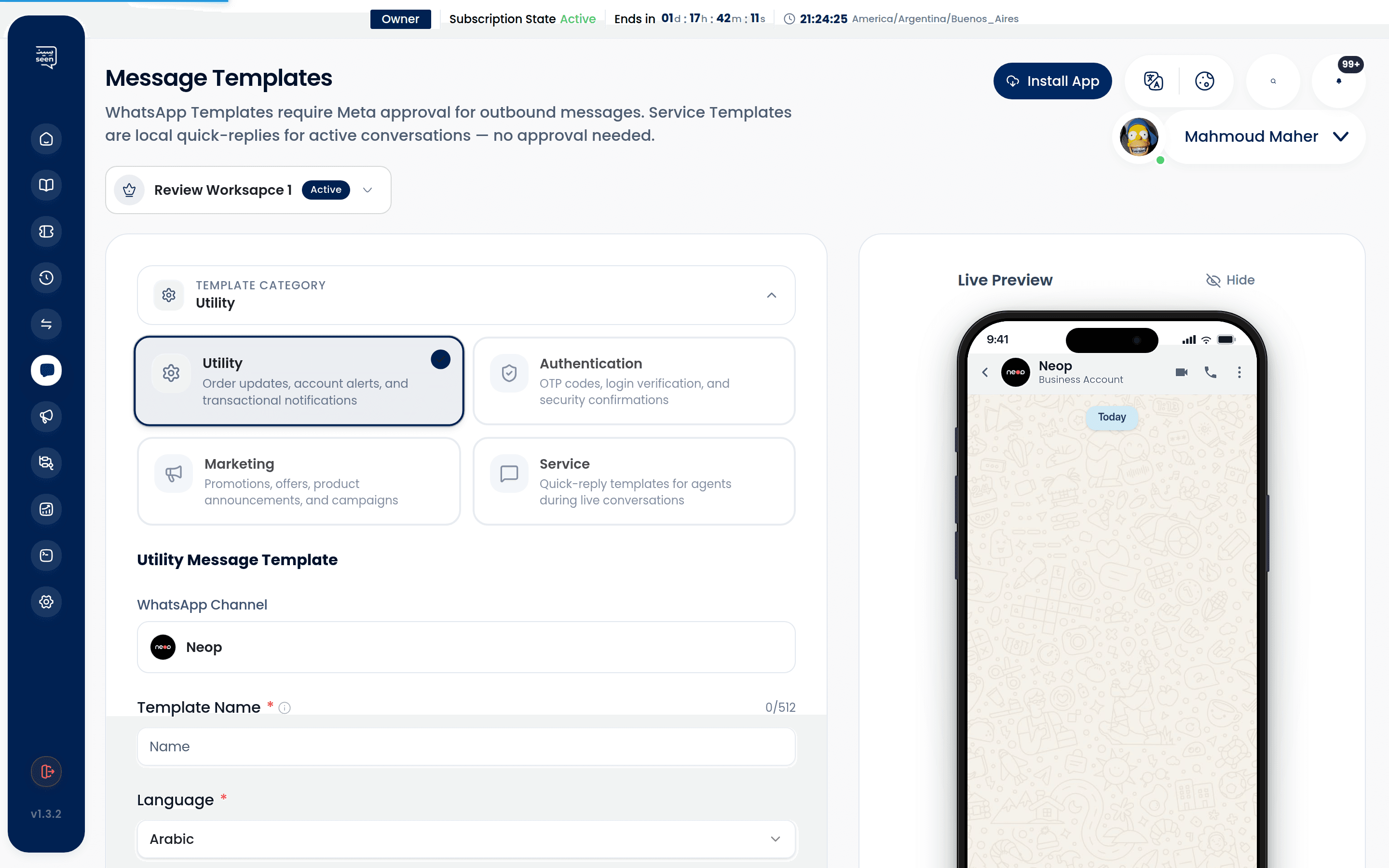
- In the Seen sidebar, navigate to Templates and click "Create Template".
- Template Key Identifier:
- Must contain lowercase alphanumeric characters and underscores only (e.g.
order_delivery_notice_v2). - Spaces, capital letters, and symbols are prohibited by Meta API rules.
- Must contain lowercase alphanumeric characters and underscores only (e.g.
- Select Category & Language:
- Accurately select your intended category (Marketing, Utility, or Authentication).
- Choose the primary language code (e.g.
EnglishorArabic).
- Draft Content & Map Dynamic Variables:
- Configure your Header format.
- Author the Body copy, clicking "Add Variable" to inject dynamic placeholders.
- Attach interactive Quick Reply or CTA buttons.
- Provide Variable Sample Values:
- Meta requires realistic sample data for every variable placeholder (e.g., if using
{{1}}, provide "Alex" as sample). This allows Meta reviewers to confirm compliance.
- Meta requires realistic sample data for every variable placeholder (e.g., if using
- Click "Submit to Meta".
4. Meta Approval Lifecycle States
Once submitted, templates transition through standardized status codes (WhatsAppVersionStatus):
| Status Code | Status Name | Badge Color | Operational Meaning |
|---|---|---|---|
| 1 | Draft | Gray | Saved locally in Seen; not yet submitted to Meta. |
| 2 | Pending Approval | Amber | Under automated review by Meta AI systems (typically takes 2-15 minutes). |
| 3 | Approved | Green | Verified and immediately available for broadcasts and inbox chats. |
| 4 | Rejected | Red | Rejected by Meta; rejection reason code provided with appeal options. |
| 5 | Paused | Orange | Temporarily paused by Meta due to adverse customer feedback or high block rates. |
| 6 | Disabled | Dark Slate | Permanently deactivated due to recurring policy violations. |
5. Overcoming Common Meta Rejection Triggers
95% of template rejections stem from preventable formatting or classification errors:
- Category Misclassification: Labeling promotional discounts or marketing offers under the "Utility" category to save on message costs. Meta's NLP models detect promotional language instantly and reject the submission.
- Missing Sample Payloads: Submitting templates with parameters like
{{1}}and{{2}}without supplying realistic sample values in the submission form. - Grammatical Flaws & Excessive Emoji: Severe spelling mistakes or spam-like emoji density (e.g. "🔥🔥🔥 WIN FREE CASH NOW 🔥🔥🔥").
- Generic URL Shorteners: Using URL shorteners (e.g. bit.ly, tinyurl). Meta mandates full brand domain names for security verification.
- Prohibited Product Verticals: Advertising pharmaceuticals, supplements, tobacco, cryptocurrency, weapons, or adult services.
6. Utilizing Templates in the Unified Inbox
When the Meta 24-hour service window closes on an active ticket in the Omnichannel Inbox:
- Composer inputs lock automatically, and the "Send Approved Template" trigger activates.
- Frontline agents launch the
TicketTemplatePickerModalto browse approved follow-up templates. - The agent inputs required dynamic parameters (e.g. ticket number, agent name).
- The template dispatches to the customer's WhatsApp; upon the customer's response, the 24-hour conversational window unlocks automatically.
Frequently Asked Questions
How long does Meta review usually take?
The majority of templates are evaluated and approved automatically within 2 to 10 minutes via Meta's automated compliance algorithms. Submissions requiring human inspection can take between 4 and 24 hours.
Can I edit the text of an approved template?
Submitting an edit creates a new revision version for Meta review. While the updated version is under review, your team can continue dispatching the previously approved version without operational disruption.
Are there costs associated with dispatching WhatsApp templates?
WhatsApp conversation pricing is billed directly according to Meta's published regional rate cards per conversation category (Marketing, Utility, Authentication) and the recipient's country code.