SLA Policies & Business Hours Management in Seen
A Service Level Agreement (SLA) constitutes the foundational benchmark for evaluating operational customer support quality, responsiveness, and customer satisfaction. Seen's SLA engine transforms quality standards into live, second-by-second countdown timers directly inside the Omnichannel Inbox, proactively warning frontline staff and supervisors before commitments are breached.
1. Core Concepts & Dual SLA Phases
Seen's SLA architecture measures customer service speed through two independent operational phases:
A) First Response Time (FRT) Phase
- Timer Inception: The countdown clock initiates the precise millisecond an inbound customer message opens a new ticket cycle.
- Timer Conclusion: Stops the moment an authenticated human agent dispatches the first manual message.
- Chatbot Segregation: Automated greetings, bot menus, and interactive flows delivered via the Visual Flow Builder do NOT stop the FRT timer, ensuring metrics measure genuine human availability.
B) Resolution Time (RT) Phase
- Timer Inception: Initiates simultaneously with ticket creation.
- Timer Conclusion: Concludes when an agent or administrator marks the ticket as Resolved or Closed after addressing the inquiry.
SLA Progression:
Customer Inquiry ──► [FRT Clock Starts] ──► Agent Human Reply [FRT Concluded] ──► Resolution ──► Ticket Closed [RT Concluded]
2. SLA States & Real-Time Inbox Badging
Every ticket in the inbox is continuously evaluated and assigned an active visual badge (SlaBadge):
| SLA Status | Badge Color | Operational Meaning | Recommended Action |
|---|---|---|---|
| On Track | Green | Substantial time remaining (more than 25% of target window). | Standard priority processing. |
| At Risk | Amber | Deadline imminent (less than 25% of window remaining). | Prioritize immediately above queue. |
| Breached | Red | Policy threshold exceeded (is_breached: true). |
Immediate supervisor intervention required. |
Tip: The ticket list in the Unified Inbox dynamically prioritizes tickets approaching breach, ensuring agents address imminent deadlines first.
3. Business Hours Engine (Schedule Integration)
One of Seen's most powerful capabilities is calculating SLAs strictly against your organization's formal working calendar:
Why Are Business Hours Critical?
If a customer submits an inquiry on Friday at 11:30 PM under a 30-minute First Response policy:
- Without Business Hours (24/7 Calendar): The ticket breaches before dawn on Saturday, unjustly penalizing agent performance scores.
- With Business Hours Enabled: The SLA clock freezes automatically throughout non-operational hours and resumes cleanly at 09:00 AM on Sunday when the office opens!
Operating Schedule Configuration
Within SLA settings, you can establish:
- Official Working Days: Select active operating days (e.g. Sunday through Thursday).
- Shift Hours: Define exact operating hours (e.g. 09:00 AM to 06:00 PM).
- Public Holidays: Exclude statutory holidays from clock calculations.
4. Priority-Tiered SLA Targets
Align speed targets with the business impact of each inquiry:
| Priority Level | First Response Target (FRT) | Resolution Target (RT) | Target Customer Segment |
|---|---|---|---|
| Urgent | 5 minutes | 60 minutes | Service outages, high-value VIP accounts |
| High | 15 minutes | 2 hours (120 min) | Qualified purchase leads, cancellation alerts |
| Normal | 30 minutes | 4 hours (240 min) | Standard inquiries, order status tracking |
| Low | 60 minutes | 8 hours (480 min) | Feedback, non-urgent feature suggestions |
5. Step-by-Step: Configuring an SLA Policy
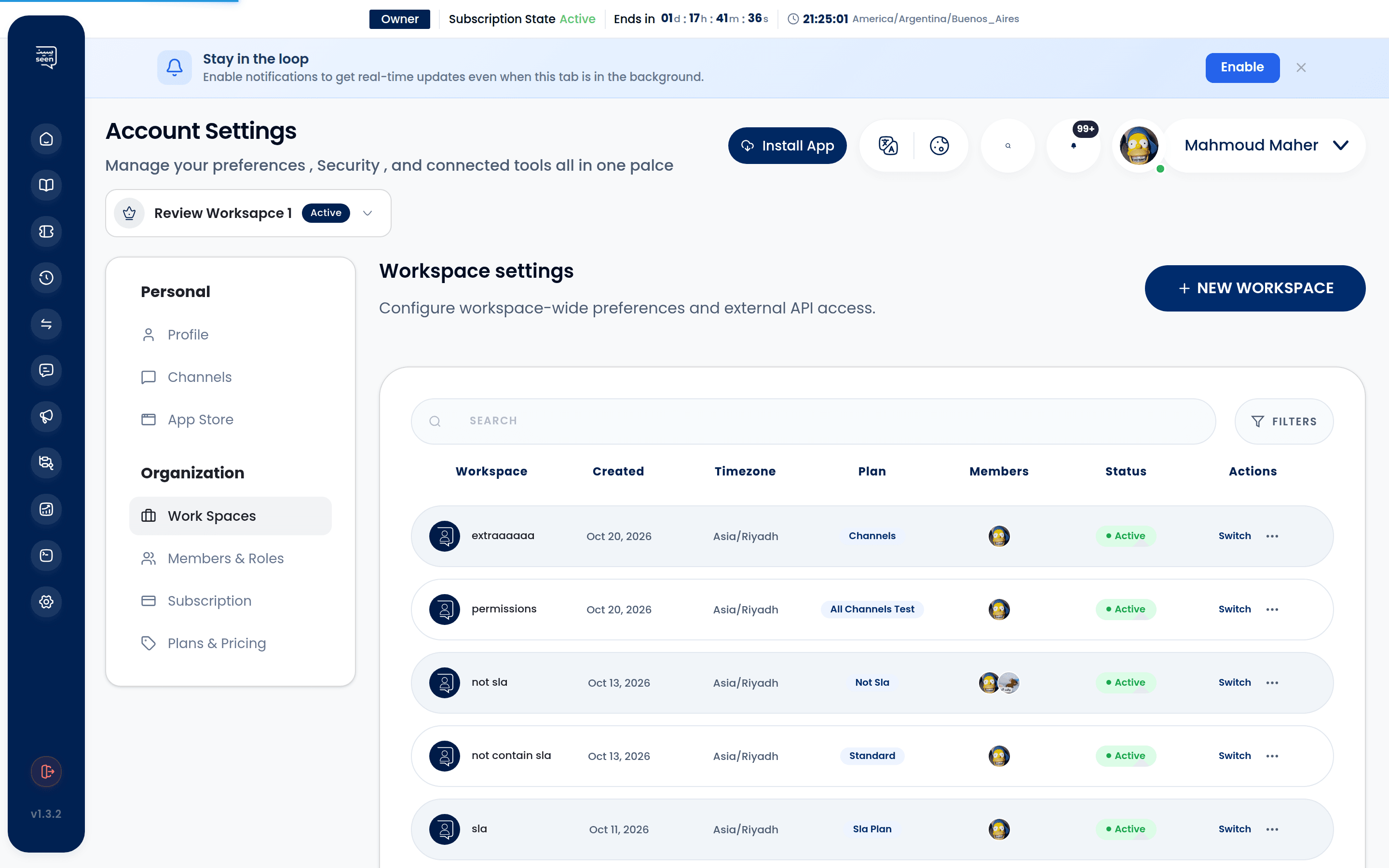
- From the navigation sidebar, select SLA Policies.
- Toggle the Enable SLA Policy switch to active.
- Configure your First Response Time Target in minutes (e.g.
15). - Configure your Resolution Time Target in minutes (e.g.
240). - Activate Apply Business Hours and define your weekly shift schedule and timezone.
- Click Save Policy.
- The policy activates instantaneously for all subsequent incoming conversations across your channels.
Warning: Modifying SLA thresholds applies exclusively to incoming tickets created after the update; historical performance reports remain locked to safeguard data integrity in Agent Performance Reports.
6. Monitoring SLA Compliance in Analytics
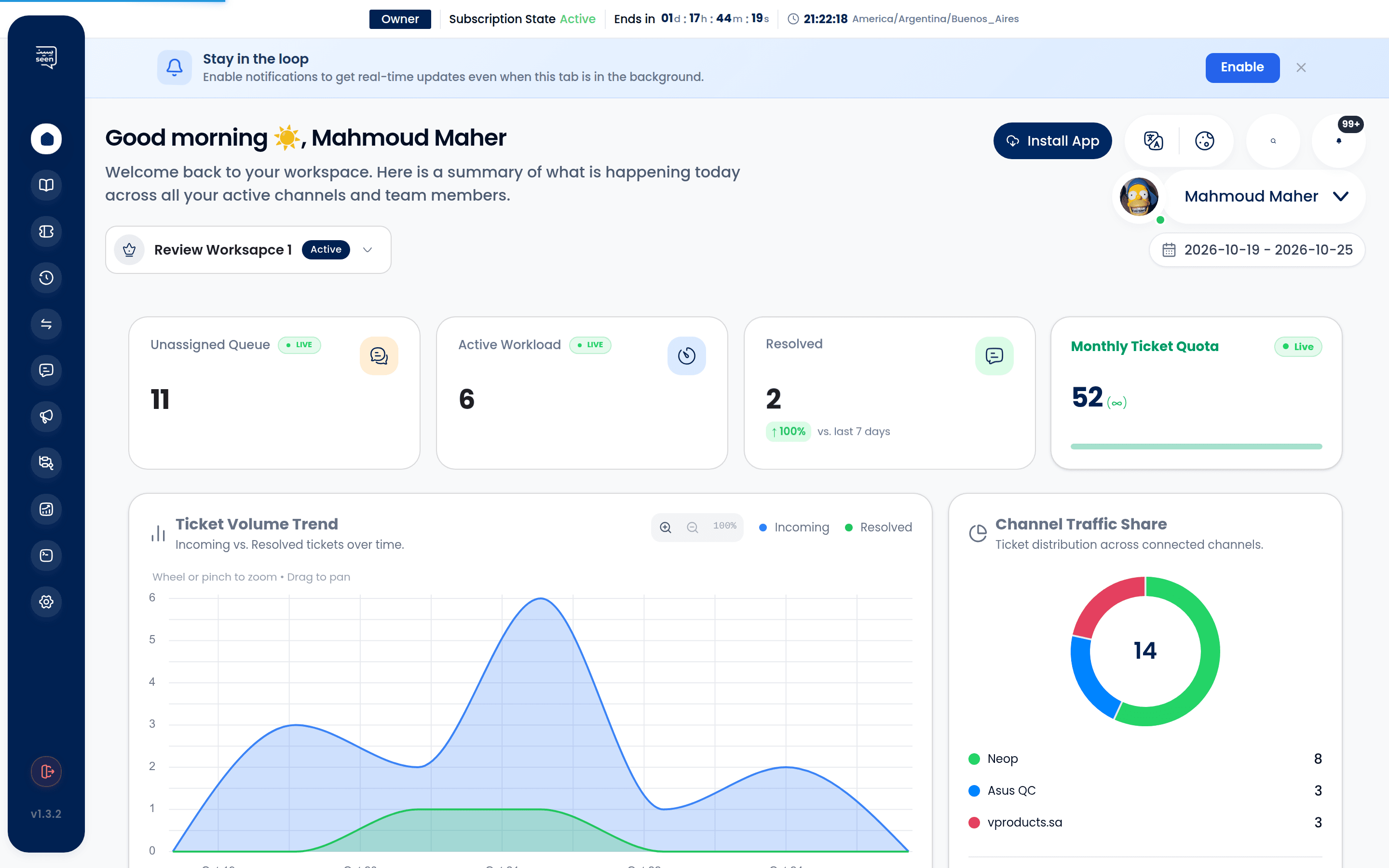
- On the Executive Dashboard, the SLA Status widget provides a real-time compliance percentage gauge.
- In Agent Performance Reports, review individual agent compliance percentages to reward top performers and identify training needs.
Frequently Asked Questions
Does reopening a ticket reset the original resolution time?
When a customer messages into a closed ticket, Seen creates a new ticket cycle. This captures the new resolution lifecycle accurately while preserving the initial successful closure in historical records.
Can the SLA timer pause when waiting for customer input?
Yes. Enabling "Pause SLA on Pending State" suspends the resolution countdown whenever a ticket transitions into the Pending status, preventing agents from being penalized while waiting for customer feedback or third-party confirmations.
What alerts occur when a ticket breaches SLA?
The ticket badge shifts to bright red, an alert notification dispatches to the Notification Center, and the breach logs permanently to team analytics.