Users, Roles & Granular Permissions in Seen
The Users, Roles & Permissions module serves as the primary governance, access control, and operational security backbone of your Seen workspace. As your frontline contact center and sales operations scale, Seen equips you with enterprise role-based access control (RBAC), fine-grained feature permissions, team pod routing, and supervisory transfer approval gates to safeguard sensitive customer data and streamline communication workflows.
1. The Four Administrative Workspaces
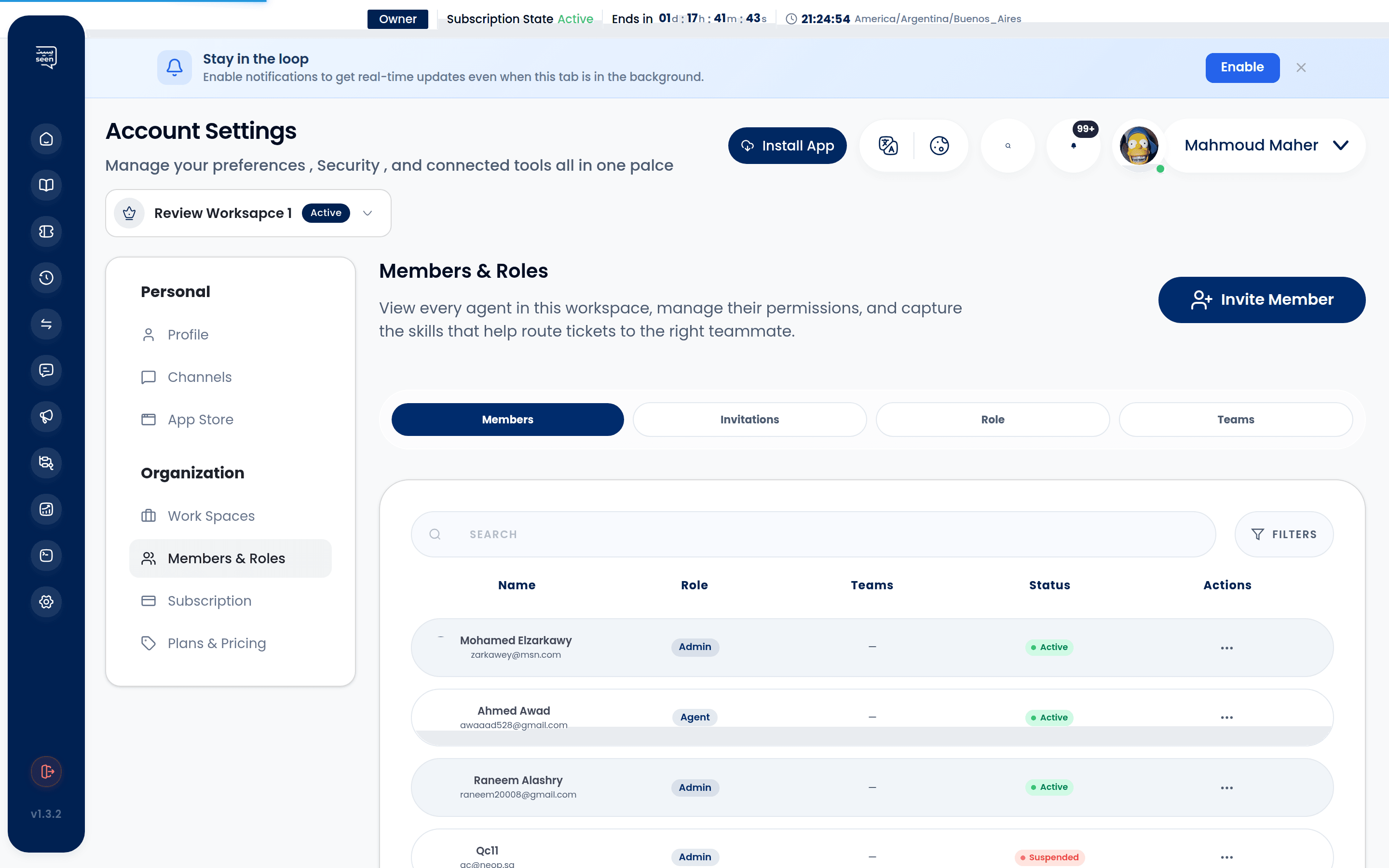
Within Settings > Users & Roles, your organizational hierarchy is managed across four dedicated tabs:
User Management Hierarchy:
┌──────────────┬────────────────┬──────────────────────┬─────────────┐
│   MEMBERS    │  INVITATIONS   │   ROLES & BUILDER    │    TEAMS    │
│ (Active Team)│ (Pending Onb.) │ (Fine-grained RBAC)  │ (Pod Units) │
└──────────────┴────────────────┴──────────────────────┴─────────────┘
A) Members Directory
- Comprehensive roster of all active team accounts registered in your workspace.
- Highlights user display name, authentication email, assigned system or custom role, assigned teams, and account status (Active or Suspended).
- Quick action controls to revise role bindings, temporarily suspend access, or de-provision users.
B) Invitations Queue
- Real-time audit log of outbound onboarding invitations dispatched via email awaiting customer confirmation (
Pending). - Displays issue and expiration dates with one-click Resend or Revoke controls.
C) Roles & Permissions Builder
- Directory of standard system roles alongside bespoke custom roles built by administrators.
- Launches the advanced visual role builder (
RoleFormView) to configure module-level permission checkboxes.
D) Teams & Pod Units
- Groups agents into functional departments (e.g. "Enterprise Sales", "Tier 2 Technical Support", "Jeddah Showroom").
- Designates Team Leads and establishes automated conversation assignment pools.
2. Standard Built-In Roles
Seen provides three core operational roles out of the box:
1. Workspace Owner (`RoleType.OWNER - 1`)
- Sovereign authority over the workspace container.
- Holds exclusive permissions to manage Subscriptions, Invoicing, and Tier Upgrades, initiate corporate ownership transfers, or permanently delete the workspace.
2. Workspace Administrator (`RoleType.ADMIN - 2`)
- High-level supervisory authority over day-to-day operations.
- Manages user onboarding and role assignments, connects communication Channels, sets SLA Policies, edits contact directories, and adjudicates Ticket Transfer Requests.
- Prohibited from altering corporate billing ledgers or removing the sovereign Owner.
3. Support / Sales Agent (`RoleType.AGENT - 3`)
- Purpose-built for frontline operations.
- Interacts with assigned and unassigned tickets in the Omnichannel Inbox, records private internal notes, applies segmentation tags, and submits transfer requests.
- Restricted from modifying integrations, downloading bulk contact databases, or viewing raw API logs.
3. Custom Role Builder (`RoleFormView`)
For organizations requiring specialized operational divisions (e.g. "Marketing Analyst" permitted strictly to audit campaign metrics, or "Junior Agent" restricted strictly to assigned conversations):
- In the Roles tab, click "Create Custom Role".
- Designate a descriptive role identifier (e.g.
Logistics CoordinatororAuditor). - Select exact functional permissions across module categories:
Fine-Grained Permissions Matrix Sample:
[✓] Tickets: View assigned conversations only
[✗] Tickets: Delete chat messages
[✓] Broadcasts: Create and launch mass broadcasts
[✓] Templates: Author and submit Meta templates
[✗] Channels: Connect or disconnect WhatsApp accounts
[✓] Analytics: Export agent performance reports to CSV
- Click "Save Role" to make it immediately assignable to existing or onboarding personnel.
4. Fine-Grained Permissions Matrix by Role
| Operational Permission | Owner | Administrator | Agent | Custom Role |
|---|---|---|---|---|
| Manage & Reply to Tickets | Yes | Yes | Yes | Configurable |
| Author Internal Team Notes | Yes | Yes | Yes | Configurable |
| Approve Ticket Handoffs | Yes | Yes | No | Configurable |
| Launch Mass Broadcast Campaigns | Yes | Yes | No | Configurable |
| Deploy Chatbot Flows | Yes | Yes | No | Configurable |
| Export Contacts & Performance CSV | Yes | Yes | No | Configurable |
| Connect / Disconnect Channels | Yes | Yes | No | Configurable |
| Manage Subscriptions & Billing | Yes | No | No | Strictly Prohibited |
5. Step-by-Step: Onboarding a Team Member
- Navigate to Settings > Users & Roles and select Invite User.
- Supply the candidate's professional email address.
- Bind the account to a designated role (Admin, Agent, or Custom Role).
- Select the operational teams they should join (e.g.
Tier 1 Support). - Click "Send Invitation".
- The candidate receives an official email dispatch containing an encrypted activation link, allowing them to establish their personal password and immediately log in.
Tip: Invitation links remain valid for 7 days for security compliance. If an invitation lapses, click "Resend" to generate a fresh token instantly.
6. Supervisory Transfer Request Workflow
To prevent chaotic ticket bouncing, Seen enforces structured oversight on conversation handoffs:
- When an agent requests a ticket transfer in the Omnichannel Inbox, the ticket enters a Transfer Pending state.
- Supervisors review the handoff inside the
Review Transfer Modal, evaluating:- Requesting agent, proposed recipient, and priority level.
- Accompanying administrative rationale note.
- Conversational transcript and active SLA status.
- The supervisor selects:
- Approve: Ticket reassigns instantaneously to the target agent with notification alerts.
- Reject: Ticket reverts to the originating agent accompanied by managerial guidance notes.
7. Account Suspension vs De-Provisioning
- Account Suspension (
MembershipStatus.SUSPENDED): Instantly revokes login privileges without altering assignment histories or historical performance attribution. Ideal for sabbaticals, annual leave, or security audits. - Member De-Provisioning: Permanently dissociates the user from the workspace. Prior to confirmation, Seen enforces a mandatory re-assignment wizard to migrate all active open tickets to active colleagues, ensuring zero customer inquiries fall through the cracks.
Frequently Asked Questions
Does inviting team members increase monthly billing fees?
Each Subscription Tier bundles a baseline allocation of agent seats. Workspace Owners can purchase additional seat licenses dynamically on demand from the Subscriptions console.
Can agents see conversations assigned to other agents?
Access boundaries are completely customizable. Through the Custom Role Builder, you can enforce "Assigned Conversations Only" isolation or allow agents to view shared team queues to foster peer collaboration.
What should an agent do if they forget their password?
Personnel can utilize the self-service "Forgot Password" link on the primary authentication screen to dispatch a secure password reset token to their verified email address.