Managing Customer Contacts & Directories in Seen
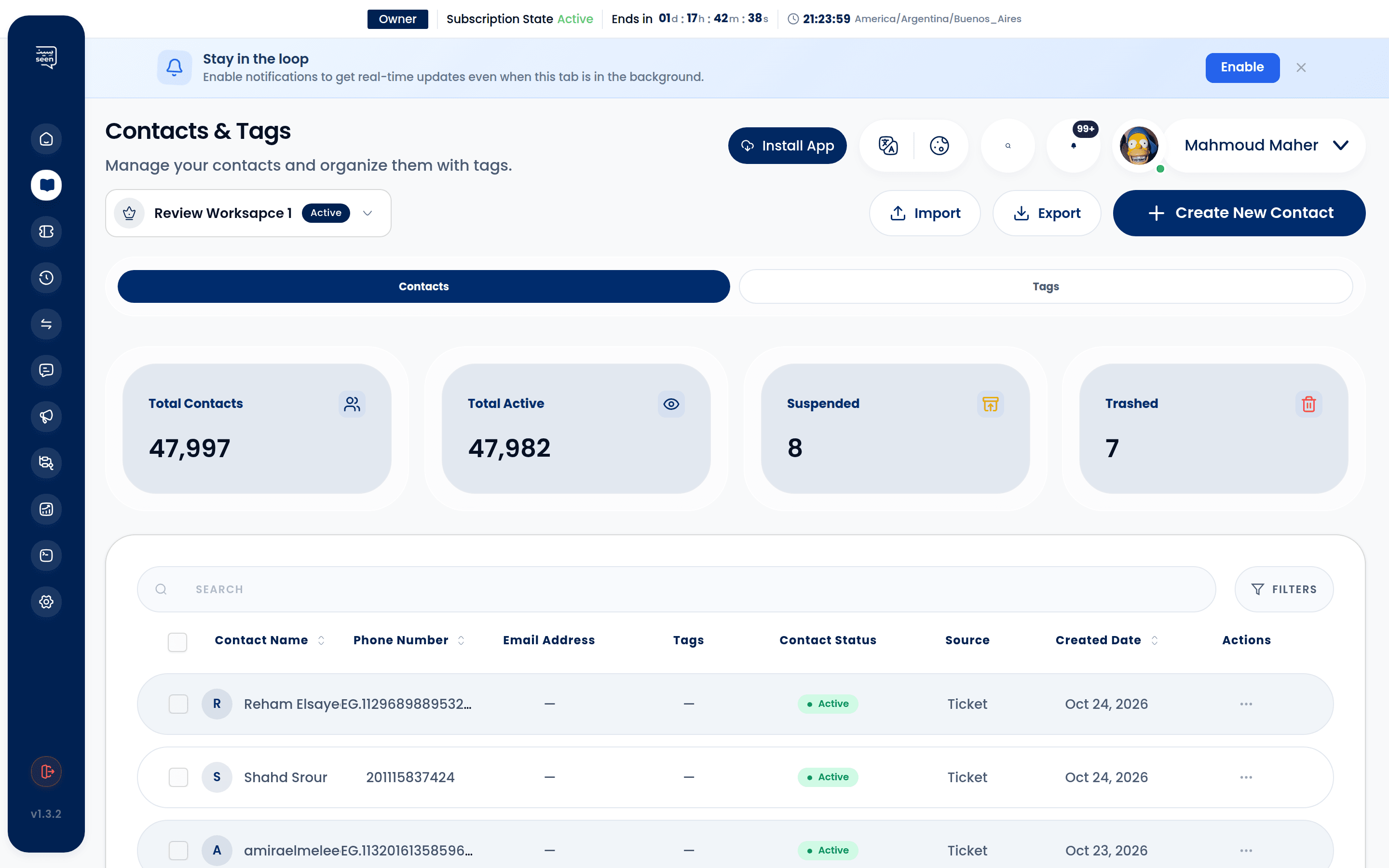
The Contacts Directory in Seen operates as an agile, omnichannel CRM ledger native to your communication workspace. Consolidating fragmented customer profiles across WhatsApp Business, Instagram Direct, Facebook Messenger, and Telegram into rich unified records, Seen empowers frontline teams with comprehensive conversational context, purchase histories, and behavioral attributes for hyper-personalized engagements.
1. Anatomy of the Unified Contact Profile
Every contact record in Seen provides a 360-degree operational dossier encompassing:
A) Core Personal Attributes
- Full Legal/Customer Name: Primary identifier rendered across conversations and reports.
- International Phone Number: Standardized strictly against international E.164 notation (e.g.
+966501234567). - Email Coordinates: Electronic mail address for invoices, fulfillment tracking, and account notices.
- Avatar Profile Image: Ingested automatically from the contact's public WhatsApp profile or uploaded manually.
B) Multi-Channel Identities
- Bound Instagram handle identifier (
instagram_id). - Bound Telegram user account key (
telegram_id). - Historical ledger of all channels utilized by this contact to interact with your workspace.
C) Applied Segmentation Tags
- Visual color-coded tags (e.g.
#HighLTV,#EnterpriseVIP,#WholesaleBuyer) utilized to drive targeted Mass Broadcast Campaigns.
D) Visual Flagging System
- Dedicated color-coded flags (
flag_color) paired with documented administrative rationale (flag_reason), such as "Escalated Account - Senior Agent Attention Only" or "Pending Fraud Investigation".
E) Custom Attributes & Metadata
- Extensible custom fields capturing specialized business attributes (e.g. Loyalty Membership Tier, Account Balance, National ID, Shipping Address, or Store ID).
F) Chronological Activity Timeline
- Past Conversation Tickets (
conversations): Complete archive of every ticket opened by this contact, resolution durations, and servicing agents. - Broadcast Delivery Ledger (
broadcastRecipients): Historical log of every marketing campaign dispatched to this contact, verifying delivered and read timestamps.
2. Manual Contact Creation & Maintenance
Adding an Individual Contact
- Navigate in the sidebar to Contacts & Tags and select the Contacts tab.
- Click the "Add Contact" button in the header.
- Input the customer's full name and international E.164 phone number.
- Assign optional email coordinates and initial segmentation tags, then click "Save".
Editing Details & Contact Blocking
- Access any customer profile to modify phone records, update custom fields, or append private notes.
- Contact Blocking (
is_blocked: true): For abusive or fraudulent callers, toggling the block switch suppresses future incoming messages from generating active tickets in the Omnichannel Inbox while preserving historical chat records for legal audits.
3. High-Volume CSV Data Ingestion & Column Mapping
Seen's bulk import engine ingests tens of thousands of customer records within seconds:
CSV Ingestion Pipeline:
Upload File ──► Data Validation ──► Dynamic Column Mapping ──► Conflict Resolution ──► Ingestion Complete!
- Within the Contacts tab, click the "Import CSV" trigger.
- Drag and drop your CSV or Excel dataset (ensure files are formatted using UTF-8 encoding to safeguard Arabic script fidelity).
- Column Mapping Interface:
- Seen parses your spreadsheet headers and maps them against database fields:
- Phone Column ──► Maps to
Phone(Mandatory). - Name Column ──► Maps to
Name. - Email Column ──► Maps to
Email. - Auxiliary Columns ──► Map to designated
Custom Fieldsor tag lists.
- Duplicate Handling Logic:
- Update Existing Records: Overwrites existing records matching the phone number with fresh spreadsheet values.
- Skip Duplicates: Retains existing records without modification.
- Click "Execute Import"; the system validates records and provides an instant summary of processed and invalid numbers.
Warning: Ensure all phone entries include the valid international country code prefix (e.g.
+966or+971). Numbers formatted in local syntax (e.g.050...) will fail delivery over the official WhatsApp Cloud API.
4. Exporting Filtered Contacts to CSV / Excel
Extract clean contact records for external analytics or marketing reviews at any time:
- Apply filter chips to isolate targeted cohorts (e.g. Contacts tagged
#VIP_Tier). - Click "Export" and select CSV or Excel.
- Seen downloads a sanitized, structured file containing all mapped custom attributes and creation timestamps.
5. Strategic Audience Segmentation for Outreach
The primary objective of clean contact hygiene is driving precision outreach:
- Tiered Engagement Segments: VIP customers, recurring subscription buyers, abandoned carts.
- Regional Segments: City-level cohorts segmented via custom address fields.
- Campaign Execution: Once segmented, transition directly to Broadcast Campaign Creation to dispatch hyper-targeted offers yielding superior conversion rates.
Frequently Asked Questions
What happens when an unlisted phone number messages our WhatsApp account?
Seen automatically provisions a new contact record immediately upon receiving the message, labeling it with the phone number or WhatsApp profile display name, and opens an active ticket in the Omnichannel Inbox.
Is there a hard ceiling on total contact storage capacity?
Storage thresholds are dictated by your active Subscription Tier. Growth and Enterprise tiers support hundreds of thousands of contacts without performance degradation.
How does Seen eliminate duplicate contacts?
Seen enforces the international E.164 phone number as an immutable unique primary key. Any attempt to re-import an existing phone number merges attributes into the original record rather than creating a fragmented duplicate.